Notifications
Open Settings > Notifications to configure push, browser, and in-window alerts.
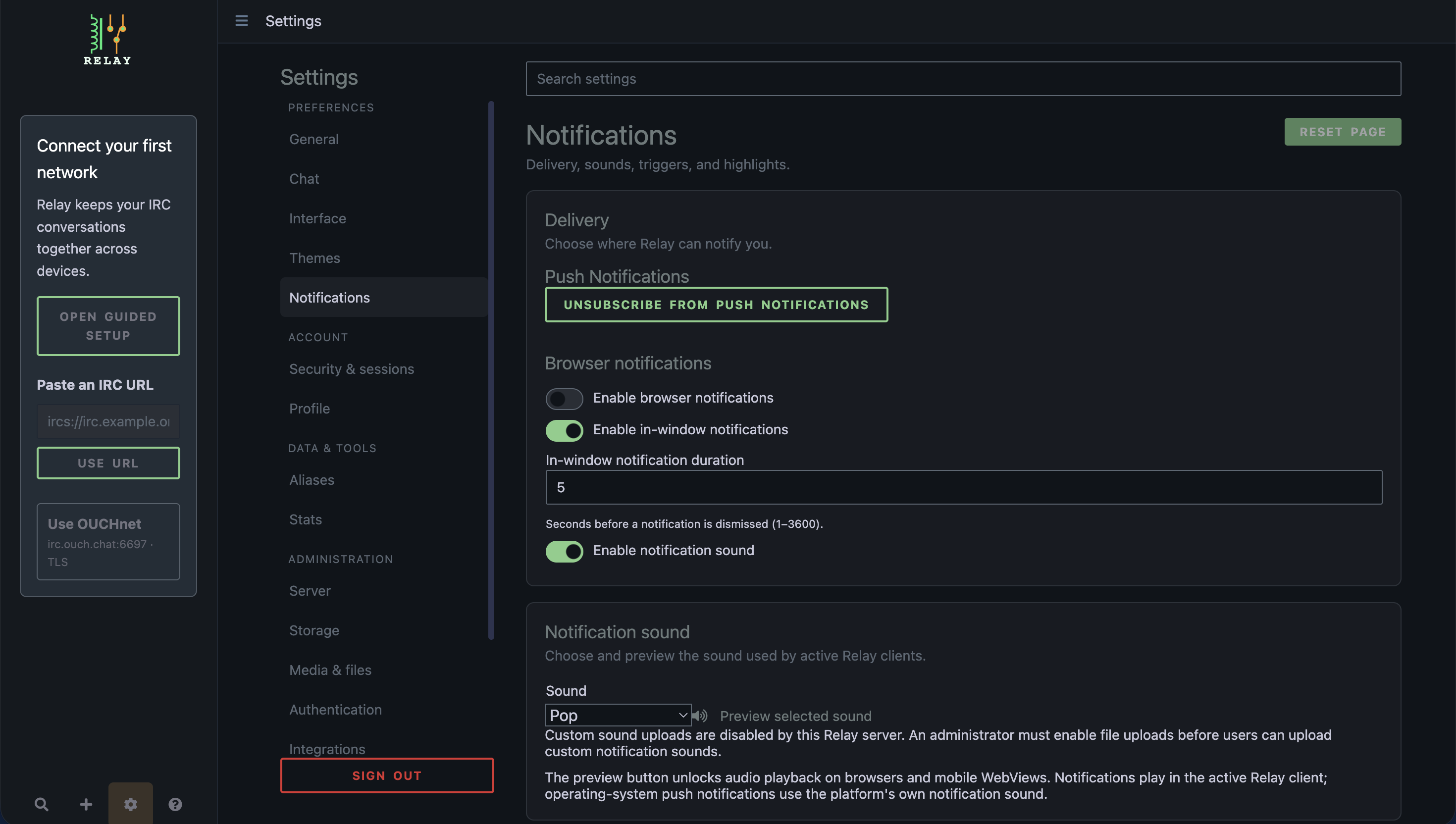
You can enable alerts for mentions and highlights, private messages, replies, reactions, or every message. Per-conversation controls override broad preferences, while mute and freshness checks still apply.
In-window alerts can remain visible for 1–3600 seconds. Clicking one opens its conversation and, when available, focuses the related message. Relay includes several sounds and, on private instances with uploads enabled, accepts a custom MP3, WAV, or Ogg/Opus file up to 2 MB and 10 seconds.
Browser audio preview grants the interaction needed by some browsers. Operating-system push notifications use the platform's own sound behavior. Networks supporting IRCv3 invite-notify can also produce invitation alerts.
Snoozes and quiet hours
These scheduling controls are available on current master, after 0.11.2.
Under Settings > Notifications > Snoozes and quiet hours, pause alerts for one hour or until tomorrow at 9:00. The latter uses the current device's timezone. Conversation menus offer the same snoozes for an individual channel or PM. Use End snooze to resume early.
Daily quiet hours use the saved timezone, including daylight-saving changes, and can span midnight. Equal start and end times disable the quiet interval. Optional exceptions match exact nicknames or channel names across networks, ignoring ASCII case; they do not override snoozes, permanent mutes, or notification categories. These preferences synchronize across devices and suppress sounds, browser, in-window, and push alerts without disconnecting IRC or hiding messages.
Permissions and delivery
Enable the desired browser/push control from Settings > Notifications and accept the browser's permission prompt for your Relay server origin. If permission was denied, change it in the browser's site settings and retry. Push requires a supported secure context and service worker; an installed PWA may be required on mobile platforms. Also allow notifications in the operating system and check focus/do-not-disturb modes.
Test with a new private message or mention from another account while Relay is in the background. Check browser notifications, push and in-window alerts separately; they are distinct delivery paths. Muted conversations, current focus and stale/backfilled messages can suppress delivery. Use sound preview after interacting with the page to unlock audio playback. If delivery still fails, follow notification troubleshooting.